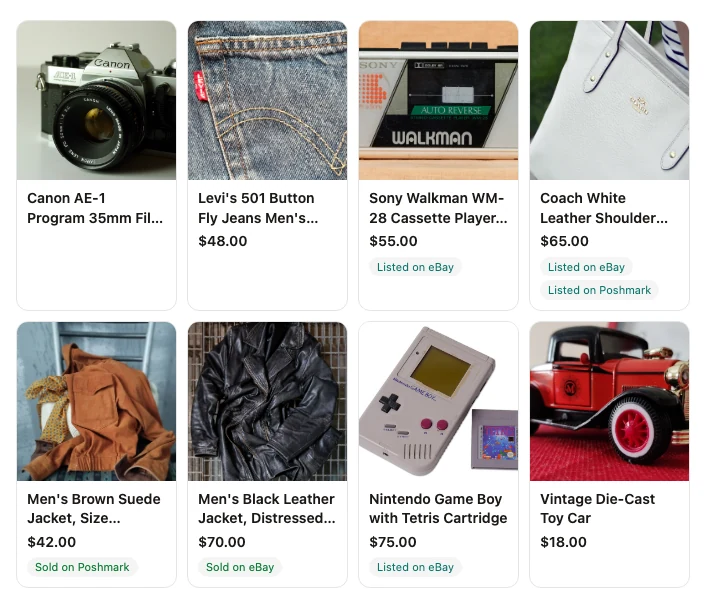


Works with ChatGPT, Claude, and more

List on eBay from the AI you already use.

Connect Shelvio to your AI assistant. Send photos, say what you know, and get a real listing back. Then put it on eBay, change a price, or find that jacket you stored in Bin 4, just by asking.

  • One tap to list on eBay
  • Same items as your Shelvio app
Simplified illustration of Shelvio in ChatGPT. The Shelvio card is a real render.

Your AI, your way

Already talk to ChatGPT or Claude all day? Keep doing that. Shelvio brings your inventory and eBay into the chat, so you do not have to switch apps to get an item listed.

Real listings, not just text

A plain chatbot can write a description you paste somewhere. With Shelvio, the listing is saved to your inventory with its photos, and eBay checks the category, item specifics, and fees before it goes live.

One tap to go live

Your assistant does the busywork: the writing, the item specifics, the eBay checks. You name the price and tap List on eBay. That is the whole job.

What you can ask

Talk like you would to a helper who knows every item you own.

No commands to learn. Mention Shelvio or just describe what you want. These are real things the connection can do today.

Turn photos into a listing

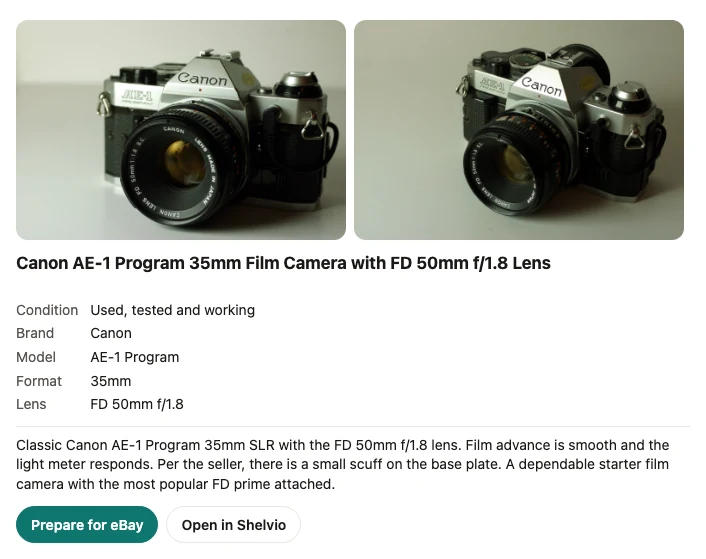
Share photos of one item and say what you know. Shelvio identifies it and writes the title, description, condition, and item specifics while you keep talking.

  • “Make a listing from these photos. Tested and working, small scuff on the base plate.”
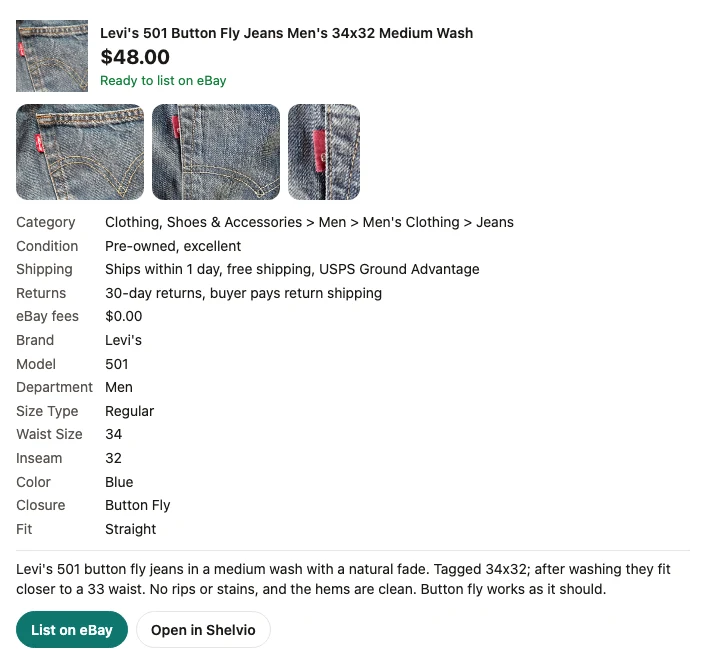
  • “These are Levi’s 501s. Tag says 34x32 but they measure 33. No rips.”
Get it on eBay

Set your price and Shelvio checks what eBay requires: category, item specifics, shipping, returns, and fees, all in one preview. It goes live only when you press List on eBay.

  • “Get my Canon AE-1 ready to list on eBay at $120.”
  • “What does eBay still need before I can list the jacket?”

Fix a listing in plain words

Ask for the change the way you would say it out loud. Shelvio rewrites the listing, fills missing item specifics, or offers other eBay categories.

  • “Rewrite the title to lead with the brand and mention the button fly.”
  • “Change the condition to pre-owned good and add that the strap has wear.”

Find anything you own

Search by title, batch, storage spot, SKU, or whether it is listed or sold. Update cost, source, and storage without opening the app.

  • “What from Saturday’s estate sale batch isn’t listed yet?”
  • “I paid $6 at Goodwill for the Levi’s. They’re in Bin 4.”

Manage your eBay listings

Change the price of a listing Shelvio put on eBay, or end it. Your assistant is set up to check with you before it does either.

  • “Drop the Coach bag on eBay to $55.”
  • “End the eBay listing for the blue Pyrex bowl. I sold it locally.”

Keep records across marketplaces

Get copy styled for Facebook Marketplace, Poshmark, Mercari, Depop, or Etsy to post yourself, then tell Shelvio where it went and what it sold for.

  • “Give me the Facebook Marketplace version of the KitchenAid listing.”
  • “Mark the Pyrex bowl sold on Facebook Marketplace for $35.”
Simplified illustration of Shelvio in Claude. The Shelvio card is a real render.
eBay, start to finish

From “list this” to live on eBay, without leaving the chat.

  1. 1

    Connect eBay once

    Ask to connect eBay. Shelvio shows a button that opens eBay's own sign-in page. Your eBay password never touches the chat.

  2. 2

    Name your price

    Tell your assistant what to list it at. Shelvio brings in the shipping and return settings you use for eBay.

  3. 3

    See exactly what eBay will get

    eBay verifies the listing first. The preview shows the category, condition, every item specific, shipping, returns, and fees, plus anything to fix.

  4. 4

    Press List on eBay

    That press is the only thing that publishes. If your assistant cannot show Shelvio's card, you finish on the Shelvio web app instead.

Your whole inventory, in the chat

Everything you made in the app is already there.

Batches you captured on your phone, listings you edited on the web, and items you listed last month all show up. Ask what is not listed yet, what sold, or what is sitting in a given bin.

Listed something on Facebook Marketplace or Poshmark yourself? Ask for that marketplace’s version of the listing, post it, and tell your assistant when it is up or sold. Your Shelvio records stay complete.

Simplified illustration of Shelvio in ChatGPT. The Shelvio card is a real render.
Before you connect

Check your plan. Then pick your assistant.

You do not need to be technical. You do need an account that allows a custom connection. Claude Free is a simple starting point with one connector included.

ChatGPT

Full custom MCP actions are not included on Free.

Business or Enterprise/Edu for the full workflow. Pro is read/fetch only; Plus and Go are not documented for full custom MCP actions.

Claude

Yes. Free includes one custom connector.

Also on Pro, Max, Team, and Enterprise. Workspaces need an owner or authorized admin to add it first. Normal usage limits apply.

Checked October 25, 2026. Plans and menus can change. These are requirements for adding your own connection, which can differ from installing a published directory plugin. Your Shelvio plan is separate.

Connect ChatGPT or Claude

Copy one link. Paste it into your assistant.

Start with the plan check above. This is the server URL for both assistants. Sign in with the same Shelvio account you use in the app, and allow AI processing once in Shelvio on the web or in the app. Listings use your existing Shelvio allowance. Directory listings are in the works.

Your Shelvio link
https://api.shelvio.ai/mcp

In ChatGPT

  1. On a computer, go to chatgpt.com/plugins. Click +, then Add custom MCP server.
  2. Name it Shelvio, paste the server URL, and choose OAuth. Review the warning, then choose Create as a plugin.
  3. Sign in to Shelvio and allow access. Install the plugin, then select @Shelvio in a new chat.

For full actions, use Business as an admin/owner, or Enterprise/Edu with permission. Pro is read/fetch only. Setup is web only.

Full ChatGPT setup guide

In Claude

  1. On a computer, go to claude.ai and open Customize, then Connectors.
  2. Choose + Add, then Add custom connector. Name it Shelvio, paste the server URL, and follow the sign-in prompts.
  3. Click Connect, sign in to Shelvio, and allow access. In a chat, turn Shelvio on from the + menu.

Works on every Claude plan. Free includes one custom connector; on Team and Enterprise, an owner adds it first.

Full Claude setup guide

Also in the works

  • Muse

    For Facebook Marketplace sellers

  • Grok

    Including Grok Bot

  • Perplexity

    As a Perplexity connector

  • Gemini

    As a connected app

Built to keep you in charge

Your assistant does the typing. You keep the keys.

Your tap puts it live

Your assistant can get a listing all the way to ready. The List on eBay button in Shelvio's preview is what publishes it, so nothing goes live by mistake.

Sign-in you can revoke

You allow access with your Shelvio sign-in and can remove it anytime from your assistant's settings. No passwords go into the chat.

Your prices stay yours

Shelvio never sets a price in chat. Your assistant is set up to check with you before changing a live price or ending a listing.

No buyer data, no other sellers

Your assistant sees only your own items. Shelvio does not pass along buyer names, addresses, or messages.

How Shelvio handles your photos and listings with AI: AI & Data. Full terms: Privacy Policy.

Questions sellers ask

Guides

Learn the workflow

AI assistant workflow6 min read

How to list on eBay from ChatGPT or Claude

Connect Shelvio to ChatGPT or Claude, turn item photos into an eBay-ready listing, and list it after you review the full preview.

Read guide
Plain-English explainer5 min read

What an MCP server is, explained for resellers

A plain-English guide to MCP, the standard that lets ChatGPT, Claude, and other AI assistants work inside your reselling tools, and what to check before you connect one.

Read guide

Prefer the app? It is the same Shelvio.

Capture a whole batch on your phone with photos and voice notes, then pick it up in your assistant later. Everything stays in sync.